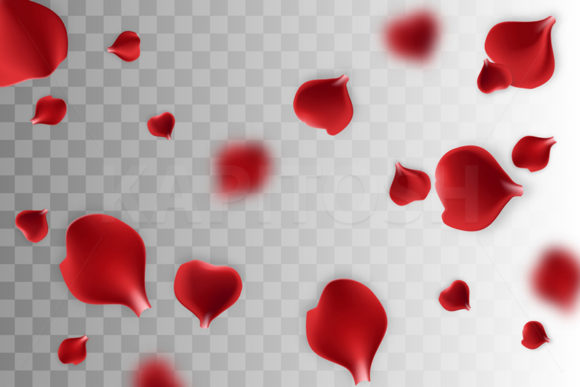
Falling Rose Petals on Transparent Back: A Practical Guide for Designers
When designing for Valentine’s Day, weddings, or romantic branding, few elements convey emotion as instantly as falling rose petals. However, the difference between a professional composition and an amateur collage often lies in the technical quality of the assets used. The "Falling Rose Petals on Transparent Back" vector illustration is designed to solve specific layout challenges that raster images simply cannot address. This asset provides a clean, isolated greeting frame with random falling petals, allowing you to layer romantic symbolism over any background without the tedious work of masking or erasing white boxes.
Many creators, from small business owners to freelance designers, underestimate the importance of true transparency in floral assets. They often settle for low-resolution JPEGs with faux-transparency or poorly clipped PNGs that leave jagged edges. By utilizing a high-quality vector source paired with a 300 DPI JPEG alternative, you ensure versatility across mediums. Whether you are creating a Valentine's floral poster, printing on clothing, or designing digital banners, understanding how to properly leverage this transparent back asset is essential for maintaining visual integrity and saving production time.
Common Mistakes When Using Floral Transparency
The most frequent error occurs during the file selection phase. Many users see "transparent background" in a title and assume the file they are downloading is ready for immediate use. However, not all transparency is created equal. A common pitfall is attempting to use the included high-resolution JPEG file for projects requiring transparency. JPEGs do not support alpha channels; they only support RGB color data. If you place the JPEG version of this falling rose petal design onto a colored background, you will inevitably see a white box surrounding the petals.
This mistake forces designers into a cycle of frustration, trying to magically erase the white background in Photoshop. While tools like Magic Wand or Select Subject have improved, they rarely produce the crisp, anti-aliased edges of a native vector mask. The result is often a halo effect or chopped-off petal tips that look unprofessional when printed at large sizes. To avoid this, always reserve the JPEG file for rectangular layouts where the white background is intentional, such as standard photo frames or full-bleed posters. For any overlay work, stickers, or complex composites, you must open the EPS vector file in Adobe Illustrator or a compatible vector editor.
Overlooking Color Space and Print Compatibility
Another overlooked detail involves color management between screen and print. Vector files are mathematically defined, but their color values depend on the document setup. A vibrant red rose petal that looks stunning on an RGB monitor may print as a dull maroon if the file isn't converted or checked for CMYK compatibility. Before sending your Valentine’s greeting card or advertising product to press, verify the color profile of the EPS file.
Additionally, beginners often scale vector assets without checking stroke weights. Because this design features delicate, random falling petals, expanding the size significantly can sometimes make the lines appear disproportionately thin relative to the new canvas size. Conversely, scaling down too much might cause intricate details to merge. Always preview your design at 100% zoom before finalizing. If you are using the 300 DPI JPEG for print, remember that 300 DPI is only valid at the native dimensions. Enlarging a raster image beyond its intended size introduces pixelation that no amount of sharpening can fix. Stick to the vector format for scalable applications like banners and signage to maintain crispness at any dimension.
Maximizing Versatility Across Adobe Applications
This batch includes assets compatible with CS5 through CC versions, but workflow efficiency varies by program. A practical warning for Photoshop users: do not simply "Place" the EPS file and rasterize it immediately at screen resolution. When placing a vector into Photoshop, ensure the transformation dialog reflects your final output size. Rasterizing a smart object at 72 DPI and then scaling it up later destroys the benefit of having a vector source. Instead, set your document resolution to 300 DPI or higher before importing, or keep the layer as a Smart Object to retain editability.
For InDesign users working on multi-page wedding stationery or marketing brochures, linking the EPS file rather than embedding it is usually the better choice. This keeps your INDD file size manageable and allows you to update the master petal asset globally if you decide to adjust colors or opacity later. Embedding should be reserved for single-page exports or when handing off files to printers who require self-contained packages. Understanding these distinctions prevents corrupted links and sluggish performance during the design process.
Evaluating Quality Before Purchase or Use
Before integrating this falling rose petal asset into a commercial project, perform a quick quality audit. Open the EPS file and check the layer structure. A well-organized vector file should have grouped elements, making it easy to isolate specific petals or adjust the density of the fall. If the paths are messy, expanded unnecessarily, or filled with stray anchor points, editing becomes a chore. High-quality vectors allow you to delete individual petals to create custom arrangements or change the hue of specific layers to match a brand palette.
Also, consider the artistic balance of the "random" arrangement. True randomness in design is difficult to achieve artificially. Examine the preview to ensure the petals don't form unintended patterns or clumps that distract from your central message. The isolated greeting frame should provide ample negative space for typography. If the petals encroach too heavily on the center, you may struggle to fit legible text without obscuring the artwork. A superior asset balances decorative flair with functional utility, ensuring your Valentine symbol enhances rather than competes with your content.
Practical Applications and Better Approaches
When applying this design to physical products like clothing or stickers, the transparent back is non-negotiable. For apparel, direct-to-garment (DTG) printers require a transparent PNG derived from the vector. Printing the white background of a JPEG onto a red shirt results in a stiff, white rectangle that feels cheap and cracks after washing. Export a high-resolution PNG with transparency from Illustrator specifically for this purpose. For vinyl cutting or sticker production, the vector paths serve as cut lines. Ensure all shapes are closed paths; open paths can cause cutter errors or incomplete weeding.
In digital advertising and social media, layering is key. Rather than using the petal frame as a static border, consider breaking it apart. Use the vector file to separate top-layer petals from bottom-layer petals. Place your text or product photo between these layers to create depth. This parallax-style approach makes Valentine’s floral posters feel dynamic and immersive. It transforms a simple clip-art style graphic into a sophisticated compositional element.
Finally, respect licensing and usage rights. While this asset is versatile, ensure your license covers the intended application, especially for merchandise or large-scale advertising. Keeping your workflow organized, respecting file formats, and understanding the technical limitations of both vector and raster versions will save you hours of rework. By treating "Falling Rose Petals on Transparent Back" as a professional tool rather than a quick fix, you elevate the perceived value of your greetings, interiors, and marketing materials, ensuring they resonate authentically with your audience.